Sportzfy for Firestick: Complete Installation Guide (2026)
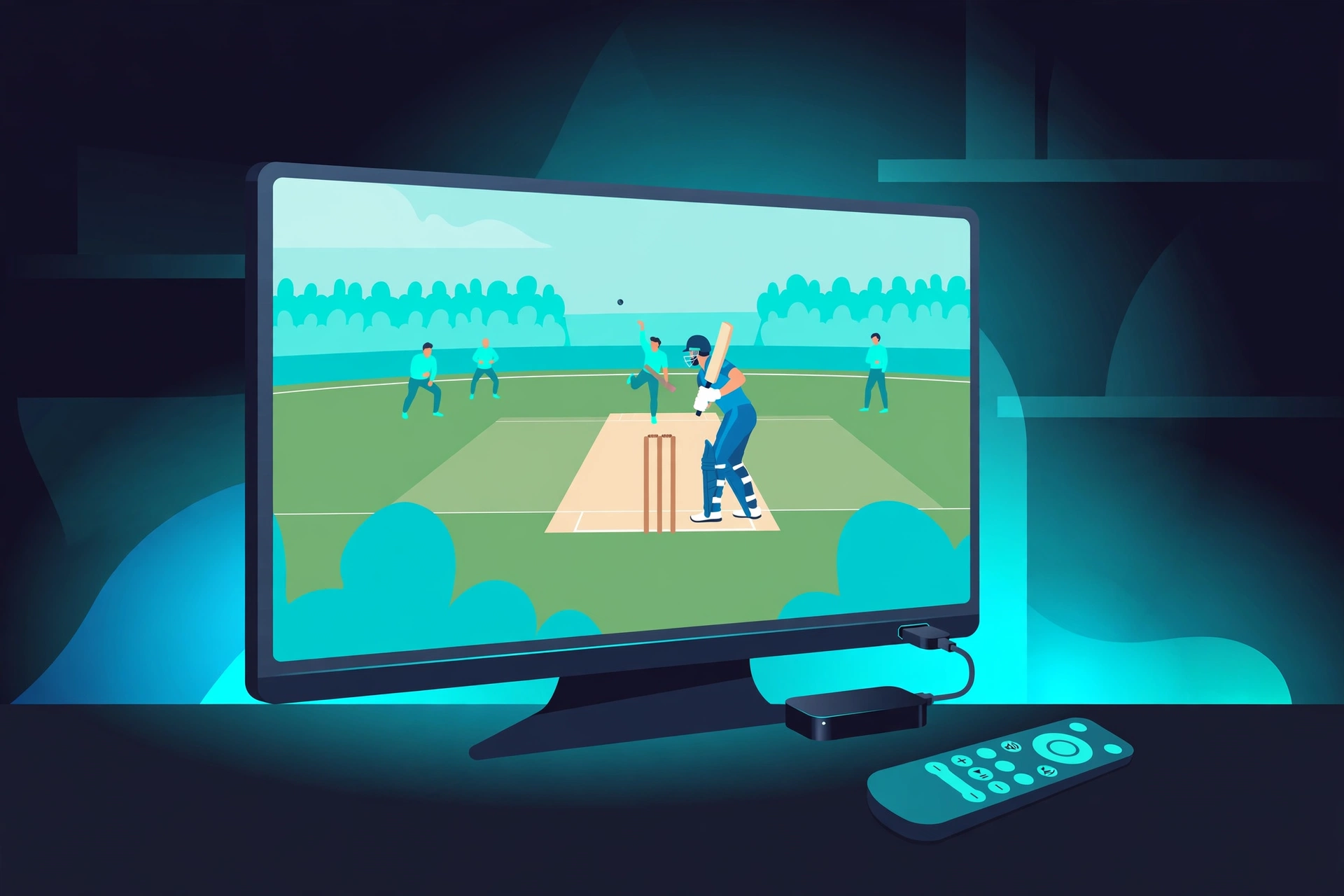
Watching live sports on the big screen changes everything, and the Amazon Firestick is one of the most popular ways to do it. If you want Sportzfy for Firestick, the good news is that installation takes about five minutes. Sportzfy is not available in the Amazon App Store, so you will sideload it using the free Downloader app. This guide walks through every step, including the settings you need to change and the mistakes to avoid.
What You Need Before Installing Sportzfy for Firestick
- Any Fire TV Stick (Lite, 4K, or 4K Max all work).
- A stable WiFi connection.
- The free Downloader app from the Amazon App Store.
- About 100 MB of free storage on the stick.
Sportzfy runs well even on the basic Firestick Lite, though the 4K models handle HD streams more smoothly.
Step 1: Enable Developer Options on Your Firestick
On newer Fire OS versions, Developer Options are hidden by default. To unlock them:
- Go to Settings > My Fire TV > About.
- Select your Fire TV Stick and press the select button seven times.
- You will see a message that Developer Options are now enabled.
- Go back to My Fire TV and open Developer Options.
Step 2: Allow Apps From Unknown Sources
Since Sportzfy for Firestick is sideloaded, you need to permit installations outside the Amazon App Store:
- In Developer Options, open Install Unknown Apps (on older Fire OS, this is called Apps from Unknown Sources).
- Find Downloader in the list and turn it ON.
Only enable this for Downloader, not for every app. Limiting sideloading permission to a single trusted installer is a basic security habit.
Step 3: Install the Downloader App
- From the Firestick home screen, go to Find > Search.
- Type Downloader and select it from the results.
- Click Download or Get to install it.
Downloader is a free, widely used utility for sideloading APKs on Fire OS. If you already have it installed, make sure it is updated.
Step 4: Download the Sportzfy APK With Downloader
- Open Downloader and allow it to access your files when asked.
- Click inside the URL field on the home tab.
- Enter the direct download URL for the Sportzfy APK from a trusted source and click Go.
- Wait for the APK file to finish downloading.
Double-check the URL before downloading. Typos here are how people end up with the wrong file.
Step 5: Install Sportzfy on Your Firestick
- When the download finishes, the installation prompt appears automatically.
- Review the permissions and click Install.
- Wait for the installation to complete, then click Done.
- Back in Downloader, choose Delete to remove the APK file and free up space. Confirm the deletion.
Step 6: Launch Sportzfy and Move It to Your Home Screen
Sideloaded apps do not always appear on the main apps row. To find Sportzfy, go to Settings > Applications > Manage Installed Applications, or press and hold the Home button and open the Apps library. For quicker access, highlight Sportzfy in the app list, press the menu button on your remote, and select Move to front. Open the app, browse the sports categories, and start streaming.
Tips for the Best Sportzfy Experience on Firestick
- Use a fast DNS or wired connection. An Ethernet adapter for Firestick noticeably reduces buffering during live matches.
- Clear cache regularly. Firesticks have limited storage. Go to Settings > Applications > Manage Installed Applications > Sportzfy > Clear Cache every few weeks.
- Force-stop before big matches. A fresh app launch performs better than one that has been idling for days.
- Consider a VPN. A VPN protects your privacy while streaming and can prevent ISP throttling. See our VPN setup guide for Sportzfy for the right configuration on Firestick.
Troubleshooting Sportzfy on Firestick
Parse error during installation: the APK did not download completely or does not support your Fire OS version. Delete it and download again from a trusted source.
App not installed: an older Sportzfy version may still be on the stick. Uninstall it first, then install the new APK.
Buffering on every stream: this is usually network-related rather than app-related. Try the fixes in our Sportzfy error solutions guide.
For a broader overview of watching on television devices, see our Sportzfy for Android TV, Smart TV and Firestick page.
Frequently Asked Questions
Is Sportzfy for Firestick free?
Yes. Sportzfy is free to install and use on Firestick, with no subscription or account required. You only need the free Downloader app to sideload it.
Which Firestick models support Sportzfy?
All of them: Firestick Lite, Fire TV Stick 4K, and Fire TV Stick 4K Max. The 4K models handle HD streams more smoothly, but the Lite runs the app fine for standard viewing.
Do I need to root my Firestick to install Sportzfy?
No. Sideloading with Downloader does not require rooting. You only need to enable Install Unknown Apps for Downloader in Developer Options, which is a standard Fire OS feature.
Why is Sportzfy not showing on my Firestick home screen?
Sideloaded apps sometimes do not appear on the main apps row automatically. Find Sportzfy in the full Apps library, press the menu button on your remote, and select Move to front to pin it where you can reach it.